Chat skins management
Chat skins can be edited in appearance section of the main settings file, located at /flashcoms/videochat/settings/main.xml
<appearance>
<defaultSkin name="Sky" />
<defaultNameColor color="ff0000" />
<skin name="Black" winColor="cccccc" color1="999999" color2="000000" color3="000000" />
<skin name="Desert Blue" winColor="C5CFDC" color1="394D6D" color2="394D6D" color3="000000" />
<skin name="Sky" winColor="cccccc" bgImage="{ROOT}videochat/skins/backgrounds/sky.jpg" />
</appearance> |
| Parameter name |
Value type |
Description |
| defaultNameColor |
Color HEX code |
Defines default usernames color which is used in the chat messages |
| |
|
|
| skin name |
String |
Defines the skin name which will be displayed in the skin selection window. |
| skin winColor |
Color HEX code |
Specifies windows and menu color |
| skin color1 |
Color HEX code |
Specifies gradient 1 color |
| skin color2 |
Color HEX code |
Specifies gradient 2 color |
| skin color3 |
Color HEX code |
Specifies gradient 3 color |
| defaultSkin name |
String |
Specifies default videochat skin name |
| skin bgImage |
String |
Defines the path to the skin file |

If you use background image the background gradient colors (skin color 1-3) will not be applied |
Video chat appearance
You manage video chat appearance and functionality by enabling/disabling different appearance settings in admin console.
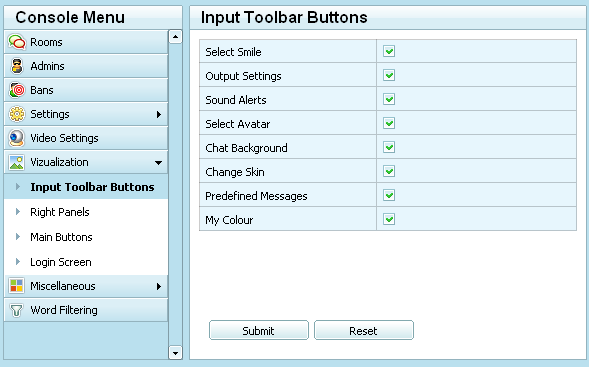
The visualization section consists of 4 areas:
| Toolbar buttons |
Allows to add/remove different functionality buttons |
| Right panels |
Right panels (who's watching me, friends list) |
| Main buttons |
Top application buttons |
| Login screen |
Login screen form elements |
|


 Skins & Appearance